Paste it into a Custom HTML block
It is on the plugin page in your dashboard. Paste it here and every code example on this page carries it.
The plugin page is also where you list the web addresses your form is allowed to appear on, and it will not appear anywhere you have not listed. The overview walks through getting a key.
This is the code. Replace vrfp_embed_your_key_here with the key from your dashboard. That is the only edit it needs.
<div data-vendorfp-proposal-form data-key="vrfp_embed_your_key_here"><a href="https://hoacrew.com/embed/w/vrfp_embed_your_key_here">Request a proposal</a></div>
<script src="https://hoacrew.com/embed/v1.js" async></script>
Two lines: where the form goes, and the script that loads it. The link inside the first line is a plain fallback for a visitor whose script never runs, cleared the moment it does. Its wording — Request a proposal — is yours to change; nothing else is affected.
Open the page for editing
In the WordPress admin, go to Pages, find the page you want the form on, and press Edit. Your Contact or Services page is the usual choice.
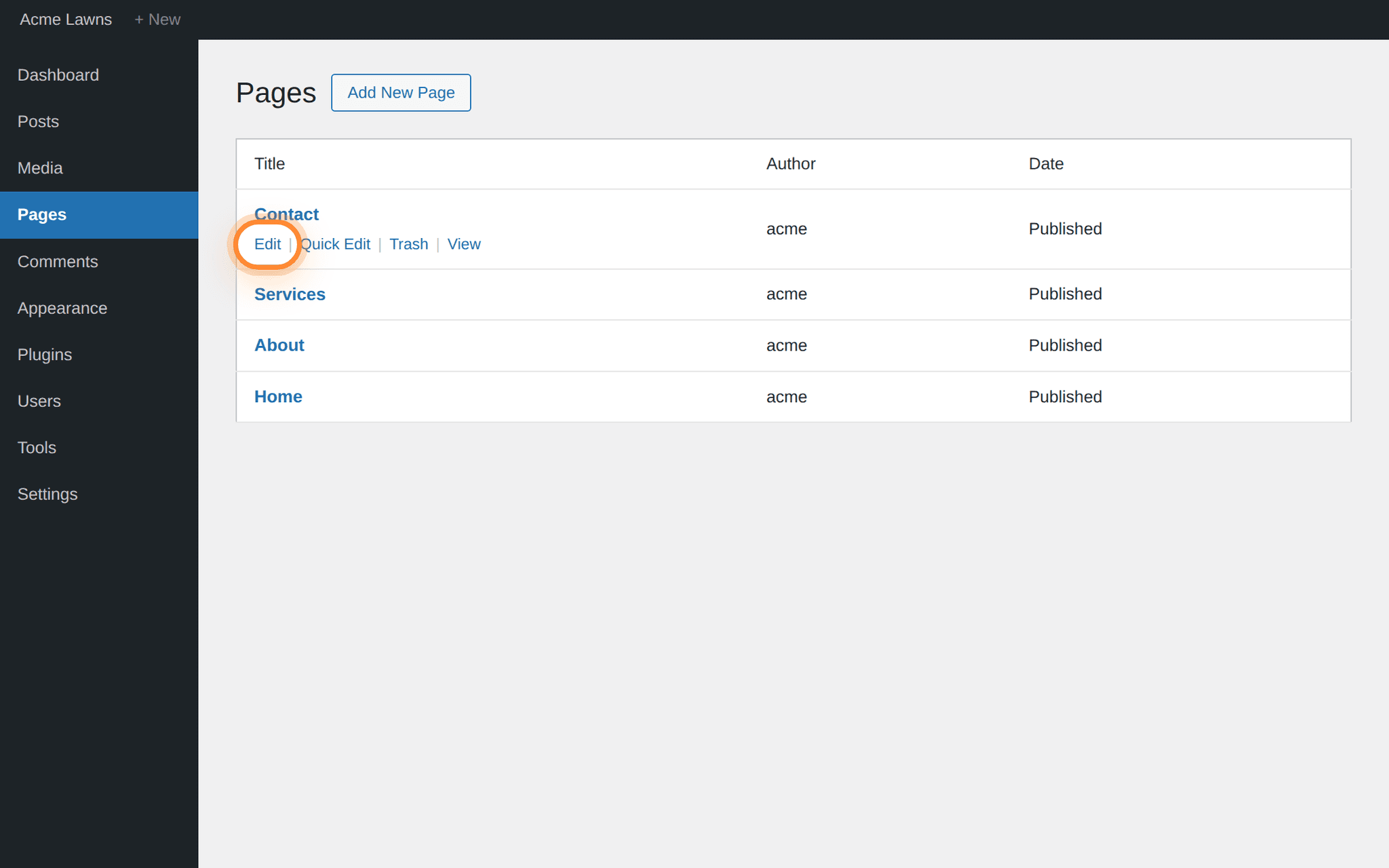
Edit sits under the page title, and only appears when the pointer is on that row. Add a Custom HTML block
Click where you want the form to sit, press the black + button, type Custom HTML into the search box, and choose it. You get an empty box with the word Write HTML… in it.
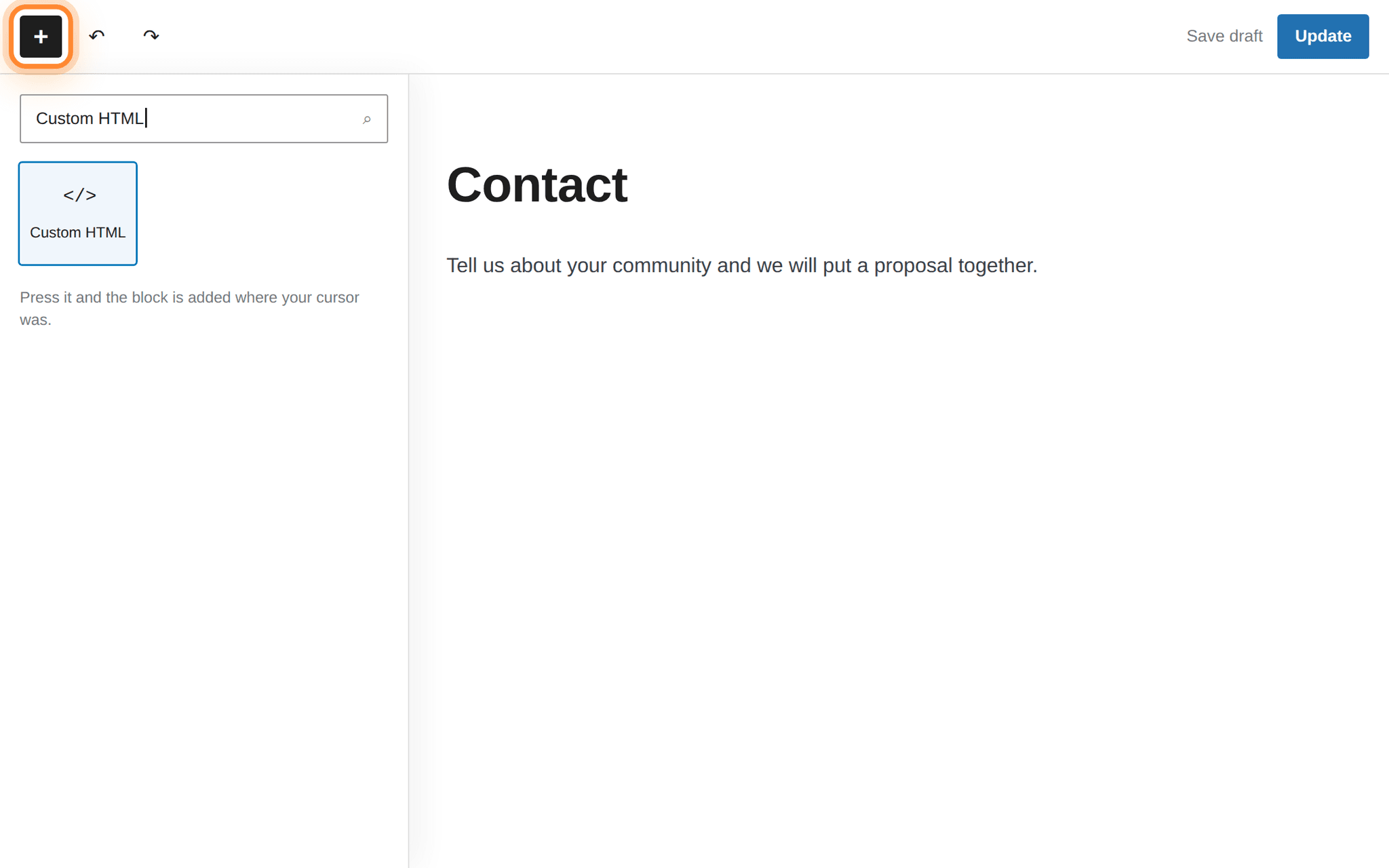
The black + is the top left corner of the editor, above the page. Paste the two lines
Paste the snippet straight into that box. Do not put it inside a Paragraph block or a Code block — a Code block displays code instead of running it, so the page would show the snippet as text.
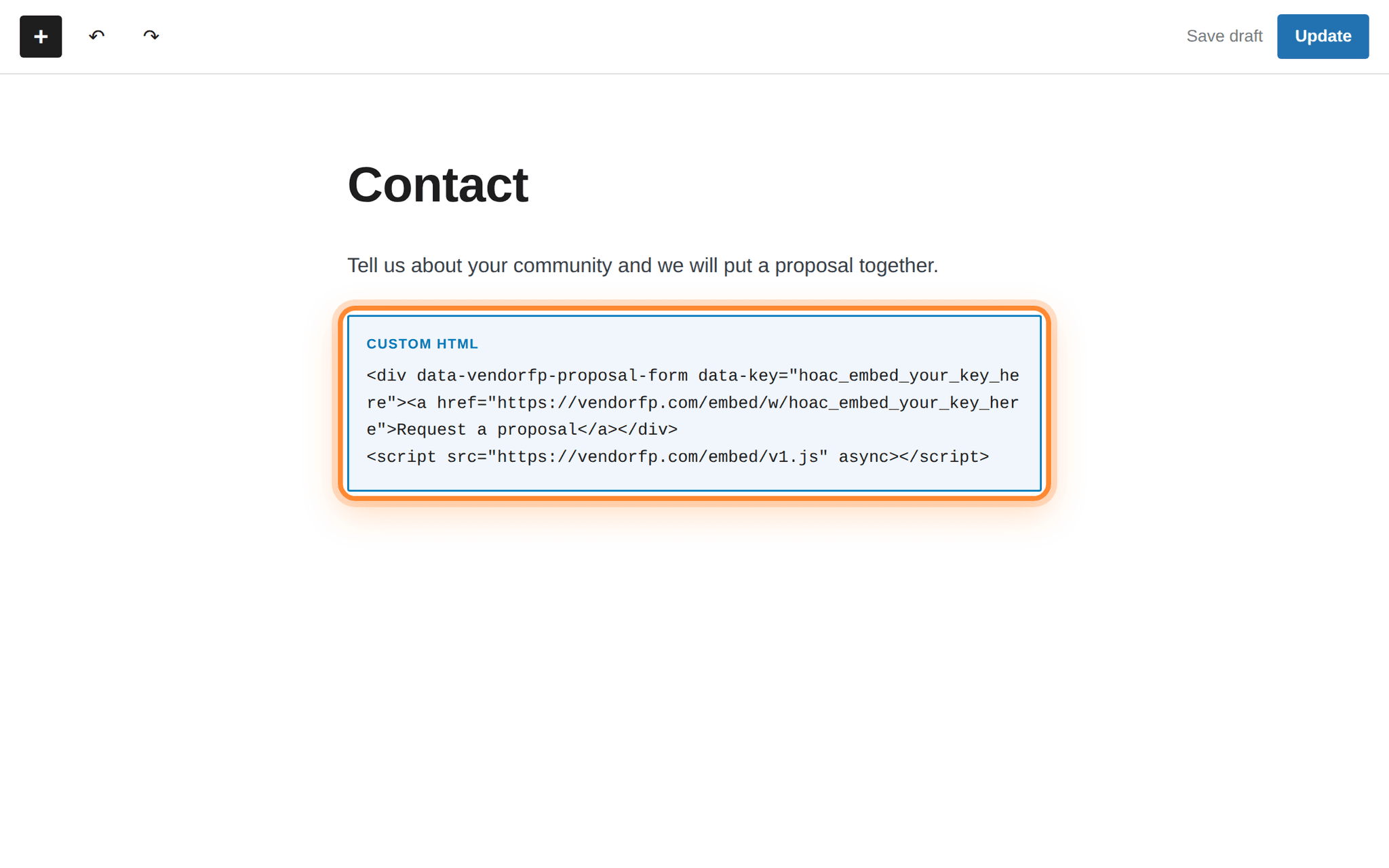
Pasted, the block shows the code as text. That is the Custom HTML block working. Publish, then open the live page
Press Update (or Publish on a new page), then press View Page. The editor shows the raw code; the live page shows the form.
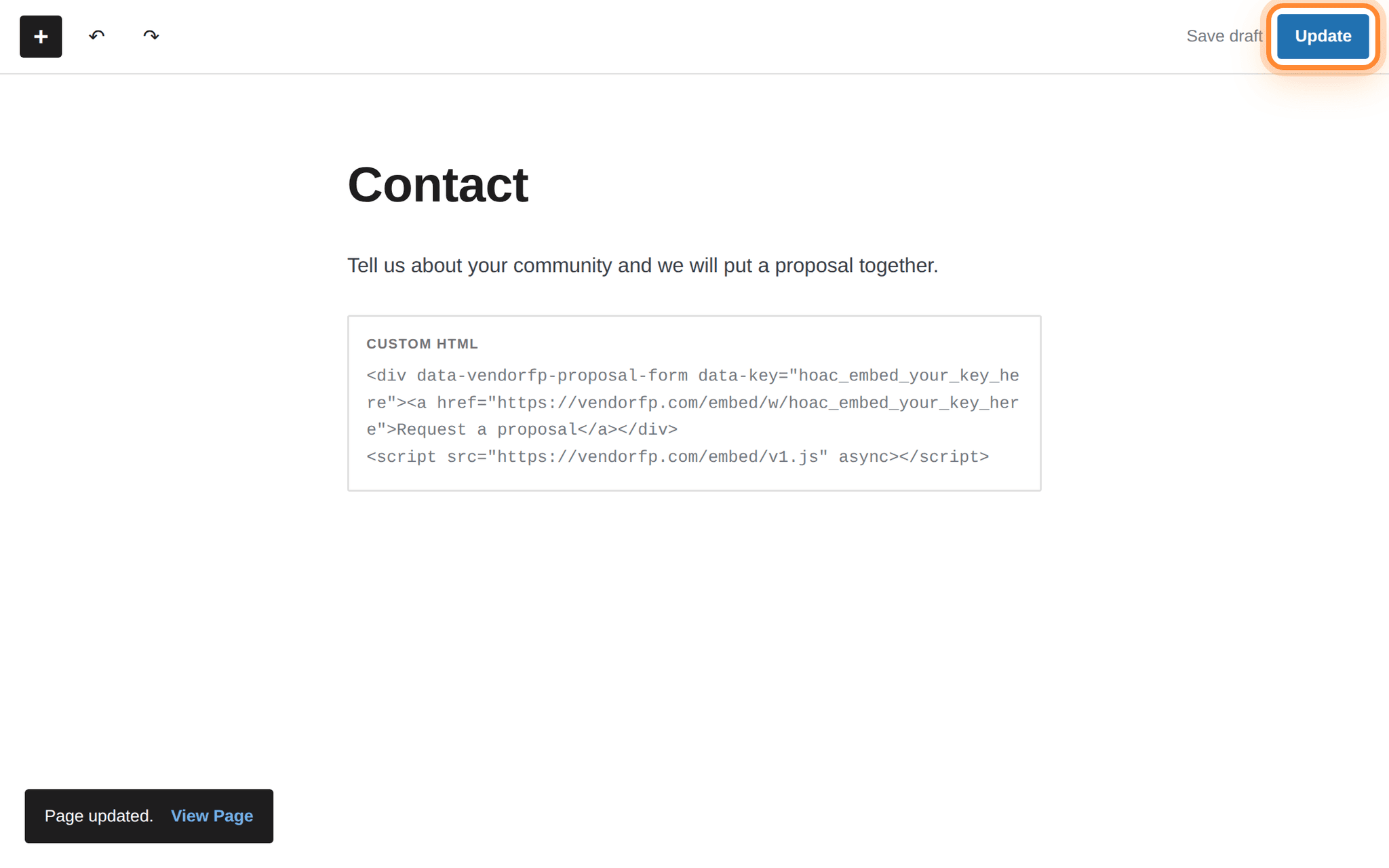
Update is the top right. View Page arrives in the notice along the bottom once it saves.
Register both spellings of your address.
acme-lawns.com and www.acme-lawns.com are two different places. If your site answers on both, list both on the plugin page. The same goes for http:// against https://. This is the reason behind almost every form that never appears.The Classic editor
If your editor is one long box with a toolbar above it, not a stack of blocks, you are on the Classic editor. Above the top-right corner of the box there are two tabs, Visual and Text.
Switch to Text first, then paste. Pasting into Visual turns the code into something WordPress displays, not runs, and switching tabs afterwards does not undo that.
Elementor, Divi and other builders
Page builders replace the WordPress editor with their own, and every one of them has a block for raw code. The names differ. The job is the same.
- Elementor. Drag in the widget called HTML and paste the snippet into it.
- Divi. Add a Code module and paste the snippet into the content box.
- Beaver Builder, WPBakery and the rest. Look for a module named HTML, Raw HTML, or Code. If a builder offers both HTML and Text, choose HTML.
Builders usually preview their own canvas without running scripts, so the form will not appear inside the builder. Save, then open the live page.
How to tell it worked
- Open the live page in a normal browser tab, not the editor.
- The form should be there, with your company’s name on it. Fill it in and send it . Take more than a few seconds over it, because a submission completed unusually fast is placed under suspected spam.
- Open your dashboard at Settings → Website plugin. Your test is in the list.
If the code is not in the page at all
proposal-form. If nothing is found, WordPress removed the script tag when you saved. It does that for any login that is not a full Administrator on a multisite install, and on some managed hosts. Ask whoever administers the site to paste it, or use the link at the bottom of this page instead.If your site has a security policy
Most websites have no Content-Security-Policy and this section does not apply to them. If yours has one — a security plugin added it, your host sets it, or whoever built the site wrote one — it needs to allow two things from us:
script-src  https://hoacrew.com
frame-src   https://hoacrew.com
The first lets the loader script run. The second lets the form’s frame render. Allow the first and forget the second and you get a blank space where the form should be, with a line in the browser’s Console tab naming frame-src. Nothing else is needed: the form loads no fonts, no analytics and no other company’s code, so there is no third allowance hiding behind these two.
On WordPress this almost always comes from a security plugin. Wordfence, iThemes Security and Really Simple SSL all offer to add one. Find the plugin’s headers or Content-Security-Policy screen and add the two lines there. If you cannot find where it is set, turn the plugin’s header feature off for a moment and reload the page: if the form appears, that plugin is the place to add them.
Link to the hosted form instead
Every key also has a plain web address that opens the same form as a full page. Put it behind any button, in an email signature, on a Google Business profile, or on a page you cannot add code to.
https://hoacrew.com/embed/w/vrfp_embed_your_key_here
It is the same form, sending to the same place, and requests from it arrive in your dashboard exactly like the ones from the embedded version.
On WordPress that is an ordinary link or button in any block. It needs no plugin, no code block, and no particular level of login.
<a href="https://hoacrew.com/embed/w/vrfp_embed_your_key_here">Request a proposal</a>